Restaurant groups run bookings in Outlook in one of three ways: a Microsoft 365 shared mailbox, a distribution list, or delegate access to one person's mailbox. The shared mailbox is the right choice. It gives the team one address with shared sent items, access through delegated permissions rather than a shared password, and 50GB of storage at no extra licence cost. On top of it, colour categories stand in for location labels and rules stand in for filters. This works well for the first few sites. It falls short of what a multi-site group needs because Outlook has no concept of a venue, no response-rate reporting, no triage by booking value, and no link to the booking system. This guide gives the setup that works, the gap it leaves, and what that gap costs the team and IT.
How restaurant groups actually run bookings in Outlook
Most groups never deliberately chose a setup. Whoever stood up the inbox first picked one, and everyone since inherited it. There are three in the wild, and the difference between them explains a lot of missed replies.
A Microsoft 365 shared mailbox. This is the right one. A shared mailbox is a single mailbox the whole team works from, with shared sent items, so there is one record of every reply. Nobody signs in with a password. The shared account has sign-in blocked, and the team reaches it through delegated permissions granted to their own accounts. That is worth pausing on, because it is the one place Outlook is genuinely ahead of Gmail: most groups on Google run a generic bookings@ address with a shared password, and the Microsoft version avoids that whole class of security and offboarding problem.
A distribution list. This is the common mistake. A distribution list does not give you a shared inbox at all. It forwards each incoming email out to every member's personal inbox. There is no shared sent folder, no single place the team works from, and no record of who has replied. Two people answer the same enquiry, or everyone assumes someone else has, and neither shows up anywhere. If your "shared inbox" is actually a distribution list, that alone explains a good share of the misses.
Delegate access to one person's mailbox. The simplest to set up and the most fragile. The booking inbox lives inside a named person's account. When they leave, it leaves with them, and you are migrating mail under pressure.
Whichever the group runs, the same workarounds get layered on top: a folder per site, colour categories to mark things, and a set of rules to move or flag incoming mail. Those are the moving parts that make a mailbox approximate a system. They are also the parts that break.
Setting up a Microsoft 365 shared mailbox for bookings
The short version: create a shared mailbox, add the team as members, then use categories and rules to stand in for location labels and filters. Here is the setup, written so the reservations lead understands it and whoever owns IT can action it.
Create the shared mailbox. In the Microsoft 365 admin centre (or the Exchange admin centre), create a shared mailbox with a clear address such as bookings@yourgroup.co.uk. Use one address, not several scattered ones.
Add the reservations team as members. Once they are members, the shared mailbox appears automatically in their Outlook alongside their own, with no separate login.
Confirm sign-in is blocked. A shared mailbox should have sign-in disabled, so access is only ever through the delegated permissions of named team members. This is the security advantage over a shared password, and it is the default, so the job is just to confirm it.
Set a colour category for each venue. Categories are the Outlook equivalent of labels. One per site gives you a way to mark which venue an enquiry belongs to.
Build rules to apply those categories automatically. Point each venue's enquiries at the shared mailbox through a per-site address, such as soho@ or shoreditch@, then write a rule that categorises or moves the message based on the address it came in on. Where a dedicated address is not possible, key the rule off a venue keyword. This is the Outlook equivalent of filters.
Add a per-venue signature. So a reply about your wine bar does not go out branded as your pizza site.
Use the shared calendar. A shared mailbox comes with a shared calendar, which is useful for holding provisional dates the whole team can see.
For two or three sites and a small team, that setup genuinely works. Worth knowing before you scale it: a shared mailbox is free up to 50GB, after which it needs an Exchange Online licence of its own.
What a restaurant group's booking inbox actually needs
Before measuring Outlook against the job, it helps to name the job. Set aside the tool for a moment. A multi-site restaurant group's booking inbox has to do six things, and these are demands of the workload, not features of any particular product.
Tie every message to a venue automatically. Routing to the right site and reporting by site both depend on knowing which venue an enquiry is for, without a person deciding.
Measure itself. Response time per enquiry, and how many enquiries turn into bookings. Numbers leadership can see.
Triage by value. A venue hire for 200 has to surface above a request to move a table by half an hour, not sit behind it in arrival order.
Cover out of hours. The largest enquiries arrive in the evenings and at weekends, when the central team is offline.
Reach the booking system. A reply on its own is half the job. The other half is checking availability and creating the booking, which means the inbox has to talk to the system the booking actually lives in.
Sound like each venue. A group running several concepts needs a fine-dining wine bar to read differently from a high-street pizza brand, not uniform across all of them.
Hold any tool up to those six. It is a fair test, because it is the work.
Where the Outlook setup falls short of what the group needs
An Outlook shared mailbox covers almost none of those six needs once a group is past about five sites. This is not a configuration you have failed to find. The limits are structural, because Outlook was built for individuals managing their own mail, not for a team running a multi-site booking operation.
Take the six in turn.
Routing is manual and it decays. Categories and rules approximate routing by site, but every new venue is another category and another rule, and the set grows until nobody fully understands it. A misfiled enquiry is an enquiry nobody is watching. And as the volume climbs, the central view goes first. A multi-site competitive-socialising group described it directly: "We're getting between 150 and 400 emails a day. Across different inboxes. There's no central view of any of it."
There is no measurement. Outlook tracks none of the things a group needs to manage: response time, volume by site, conversion. An ops director at a UK bar group put it plainly: "Email was just a black hole. I had no control over it. No KPIs, no response rate, nothing." As the same operator noted, every other part of a restaurant has data, covers, revenue, reviews, and the inbox is the one part that does not.
There is no triage. A shared mailbox treats every message the same. A Head of Group Bookings at a large multi-brand group described the squeeze: "I've got four or five venue hires of 200 plus. But it's quite difficult when you've got 40 inquiries sitting there at the same time."
There is no out-of-hours cover. The mailbox simply sits until someone opens it. A roughly 40-venue entertainment group lost a single booking worth £40,000 because the enquiry arrived out of hours and no one replied in time. Their target was a five-hour response window, and the inbox had no way to hold to it overnight.
There is no booking-system link. The reply and the booking are two separate manual jobs. A team member answers in Outlook, then opens the booking system in another window to actually create the booking.
There is no per-venue voice. A signature library is not a tone. Every venue sends from the same templates, in the same voice.
And the break can come early. An owner-operator who had just opened a second site found the cracks appeared immediately: "Since we opened the second site, bookings have been falling through. The inbox just doesn't get checked fast enough."
Stage | What it looks like | The symptom that appears |
|---|---|---|
1 to 2 sites | One shared mailbox, a tight team | Works. Categories and rules are easy to hold in your head |
3 to 4 sites | More categories, more rules | Rules need maintaining, the odd enquiry gets misfiled |
5+ sites, 150 to 400 emails a day | A category and address per venue | No central view across the estate |
~60 locations | Hundreds of emails a week | Cannot answer "which sites?" because the mailbox has no location data |
Large multi-brand group | Mostly third-party email | 200-cover hires buried among 40 routine enquiries |
What running bookings on Outlook actually costs IT
The shared mailbox is free up to 50GB. Making it behave like a booking system is not, and the cost lands on whoever owns IT.
Someone has to own the rules and the categories, and they break on schedule. Every time a venue opens, an alias changes, or the naming convention drifts, the rule set needs editing, and a rule that silently stops firing is an enquiry quietly going to the wrong place. The 50GB cap is fine until a high-volume booking inbox reaches it, at which point the shared mailbox needs its own Exchange Online licence. Access and permissions have to be managed as people join and leave. And because there is no native reporting, every time leadership asks for a response rate or a volume-by-site number, the answer is a manual export and an afternoon in a spreadsheet.
To be fair to Microsoft, the shared mailbox itself is a sound, secure piece of infrastructure, and nothing above is a fault in it. The cost is in the workarounds layered on top to make a mailbox do a job it was never designed for. It is a quiet, recurring tax, and it is paid in IT time that could go somewhere else.
What closes the gap: a booking inbox built for groups
At that point, the answer is not a better Outlook configuration. It is a booking inbox built for a multi-site group, and the difference is exactly the six needs above.
Every message arrives already tagged to its venue, with no rule to write or fix, which closes the routing need and removes the IT tax in the same move.
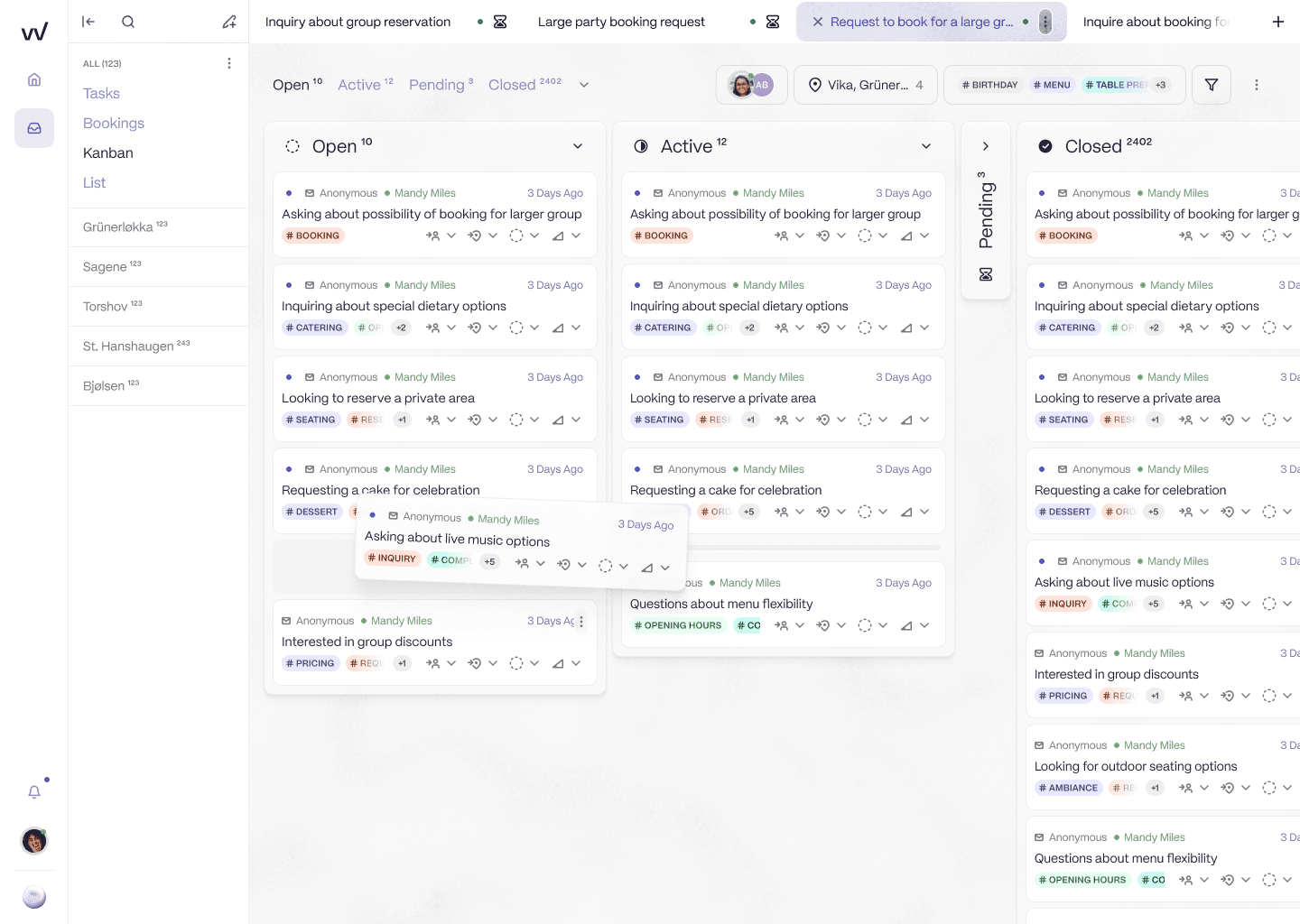
The venue sidebar is the data model, not a rule you maintain. Every enquiry routes to the right site on arrival, so one screen covers the whole estate and there is nothing for IT to keep editing.
The inbox tracks response time and booking conversion by location, so it has the data layer the rest of the restaurant already has.
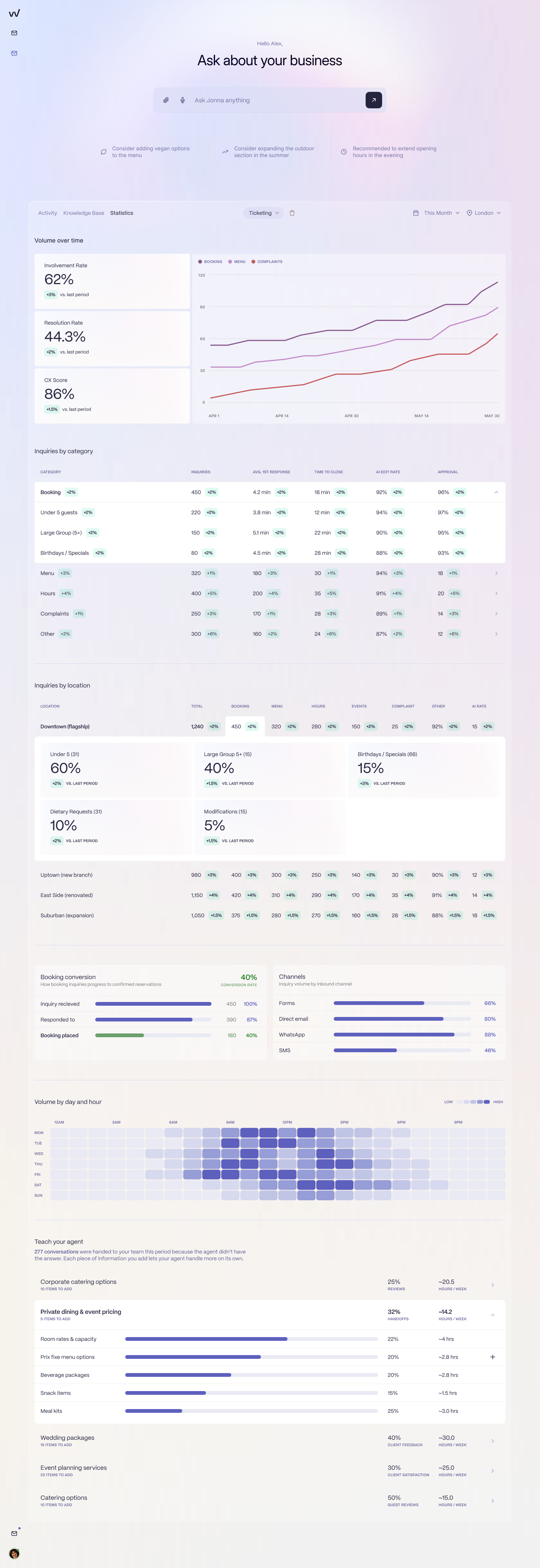
Response rate, resolution rate, and booking conversion, broken down by venue. The "which sites?" question becomes a dashboard rather than a manual export.
A hospitality-trained AI handles the routine enquiries, the dietary questions, the small amendments, the directions, around the clock, so the £40,000 enquiry that used to sit until morning gets an answer in minutes and the team starts the day with only the bookings that need a human. Because the AI is connected to the booking system, a reply can become an actual booking inside the same thread rather than a second job in another window. And because it learns each venue's tone from that venue's own past replies, a fine-dining concept and a casual one under the same group each sound like themselves. Pricing is per location at £75 a month rather than per seat, and for IT the move is light: central setup, no per-site changes, days rather than weeks.
This is the path the Brasilia Group took, moving its booking workload off a horizontal helpdesk onto a location-aware inbox. Their founder, Nikolaos Kiosses, put the outcome simply: "The transition from Zendesk to RevVue has been a game changer."
An Outlook shared mailbox is the right tool for the first few sites, and a more secure one than most groups realise. Knowing when you have outgrown it, before it costs you a booking, is the part that matters. If you want to see what the alternative looks like on a real enquiry your team received last week, book 20 minutes.
Frequently asked questions
How do you set up a shared booking inbox in Outlook for a restaurant group?
Create a Microsoft 365 shared mailbox in the admin centre, give it a clear address such as bookings@yourgroup.co.uk, and add your reservations team as members so it appears automatically in their Outlook. Access is through delegated permissions, so nobody shares a password. Then set up a colour category for each venue and rules that auto-categorise enquiries by the address they came in on or a venue keyword, which is the Outlook equivalent of labels and filters. Add a per-venue signature and use the shared calendar for provisional holds.
What is the difference between an Outlook shared mailbox and a distribution list?
A shared mailbox is one mailbox the whole team works from, with shared sent items and a single record of every reply. A distribution list just forwards each email out to every member's personal inbox, so there is no shared sent folder and no single place to see what has and has not been answered. For a booking inbox the shared mailbox is correct. The distribution-list version is a common cause of missed and duplicated replies.
Does a Microsoft 365 shared mailbox need its own licence?
Not up to 50GB. A shared mailbox is free as long as it stays under 50GB, though each person who accesses it needs their own Microsoft 365 licence. Past 50GB the shared mailbox needs an Exchange Online licence of its own, which a high-volume booking inbox can reach over time.
Can Outlook route booking emails by restaurant location?
Only manually. Outlook and Microsoft 365 have no concept of a location, so routing by venue means maintaining a colour category and a rule for every site, usually keyed off a per-venue address or a keyword. It works for a handful of sites, but the rule set grows with every new location and has to be maintained, because location is a workaround rather than a built-in field.
How many locations can an Outlook shared mailbox handle for bookings?
In practice, around five. An Outlook shared mailbox is fine at one or two sites, strains at three or four, and stops being a system somewhere past five sites or roughly 100 emails a day, when there is no central view across venues, no response-rate reporting, no triage by booking value, and no cover for enquiries that arrive out of hours.
What should a restaurant group use instead of an Outlook shared inbox?
Once a shared mailbox stops scaling, the alternative is a booking inbox built for restaurant groups: one that tags every message to its venue automatically, so there are no rules for IT to maintain, gives a single view across the estate, tracks response rate and conversion by location, and uses a hospitality-trained AI to handle routine enquiries and link to the booking system so a reply becomes a booking. RevVue is built for this and prices per location rather than per seat.